ADE Help Desk
The Arizona Department of Education (ADE) Help Desk system is designed to provide efficient and transparent support for various technical and operational needs. This ticketing system allows you to submit requests and track their status, ensuring that inquiries are addressed promptly and effectively. Whether you need assistance with school finance, the Empowerment Scholarship Account (ESA) program, ADE technology solutions, or other ADE services, the Help Desk system streamlines communication and enhances the overall user experience.
How to get access to the ADE Help Desk
After you create your ADEConnect account and try to access the Helpdesk (for the first time), you’ll be prompted to create a Helpdesk account.
There are three ways to register an ADEConnect account.
- Self Registration: When an ADEConnect account is created via self-registration link.
- ESA: When an ESA (ADEConnect) account is created.
- Certification: When a Certification (ADEConnect) account is created.
Option 1:
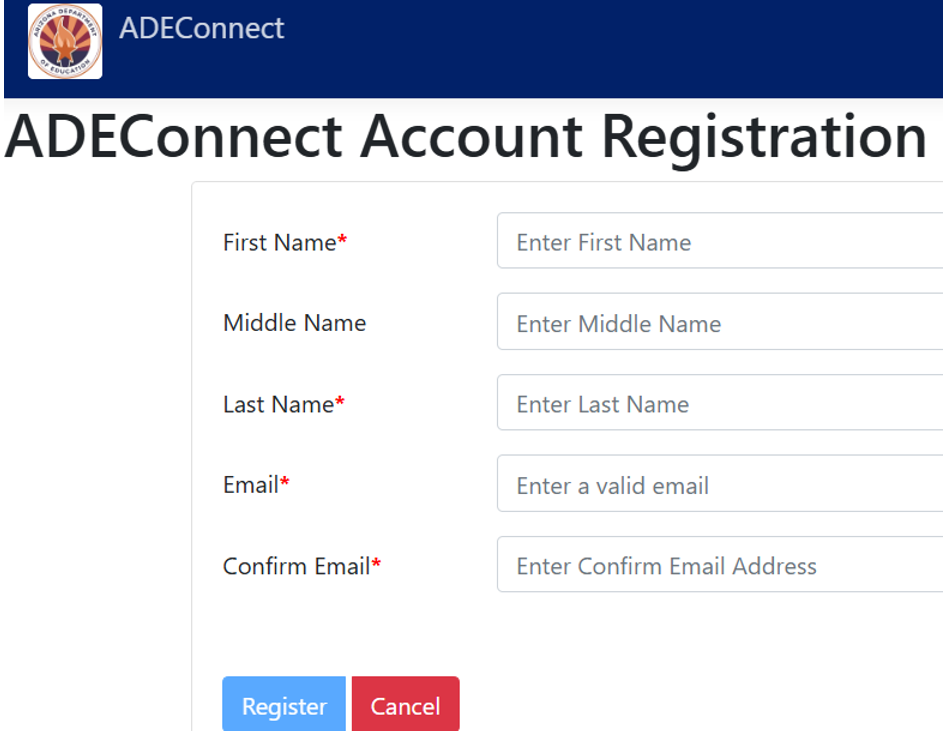
Self Registration
ADE Connect: When an ADEConnect account is created.
URL: https://adeconnect.azed.gov/Account/SelfRegistration/General
Option 2:
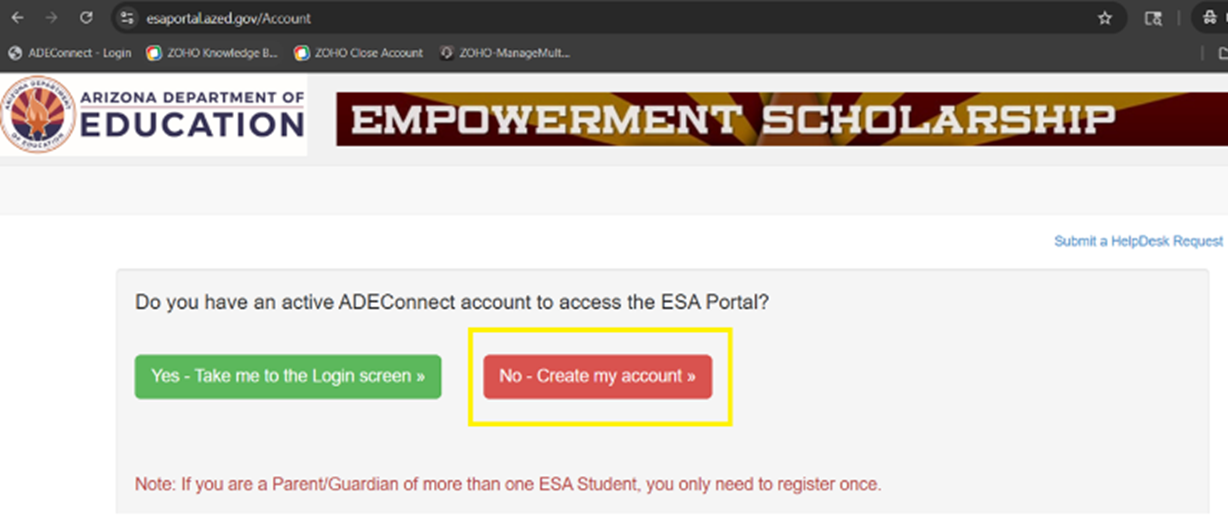
When an ESA (ADEConnect) account is created.
URL: https://esaportal.azed.gov/Account
Option 3:
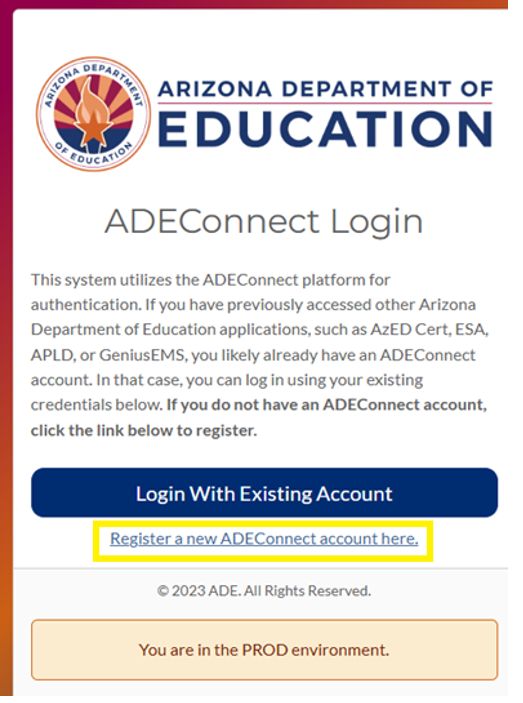
When a Certification (ADEConnect) account is created.
URL: https://mycert.azed.gov/launch/account
How to activate a Help Desk account
After your ADEConnect account is activated (using any of the options specified above), an email is sent with instructions to “Activate your ADEConnect account”.
Click the "Verification Link" in the email
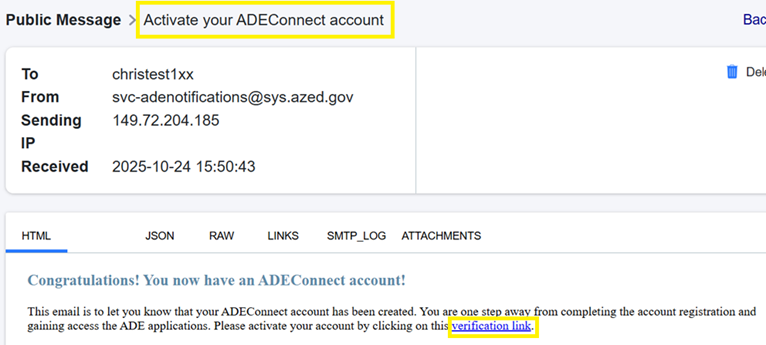
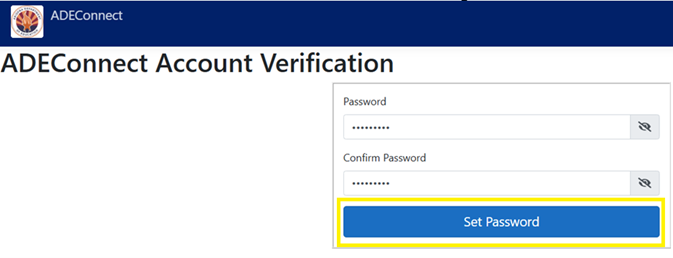
Clicking the “verification link” loads a page where you can submit a password.
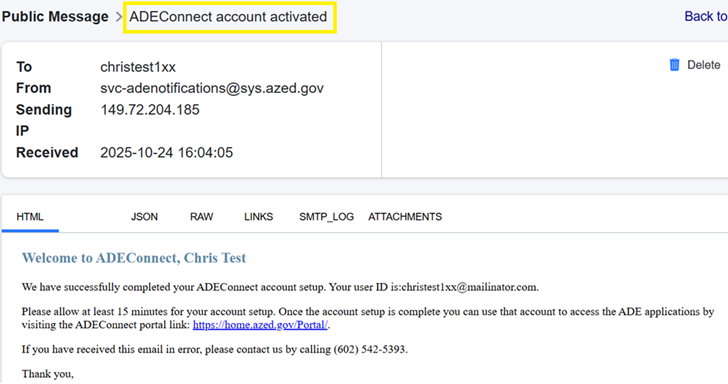
Afterwards, you'll receive an email confirming account activation.
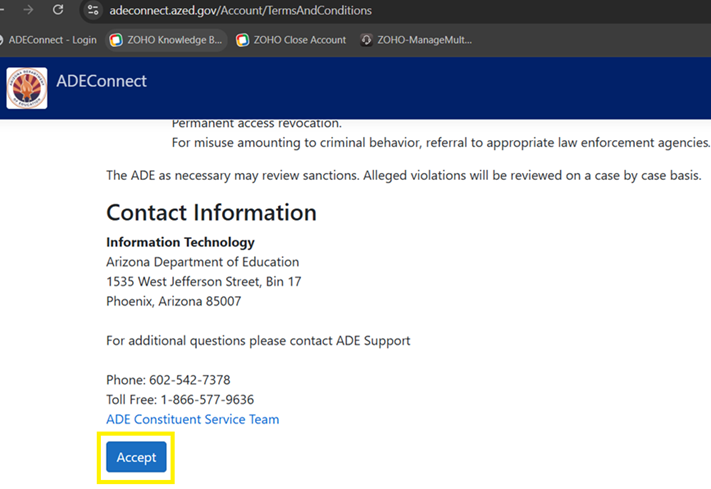
Now... login ADEConnect and “Accept” the Use Policy.
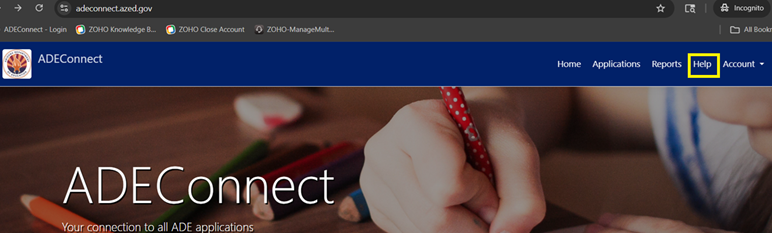
- After you accept the “Use Policy”... click the “Help” link (in ADECOnnect) then: “Go to Help Desk”
The first time you click the link... you'll be prompted to "join organization".
IMPORTANT:
If you use a mobile device, you cannot activate your Help Desk account through a mobile browser. Activation requires the Help Desk Mobile App to be installed first. If you don't want to download the app, you may access the Help Desk using a supported web browser on a desktop or laptop computer.
Using a mobile device requires using the Help Desk App.
Android: https://play.google.com/store/search?q=servicedesk%20cloud&c=apps&hl=en_IN&gl=US
Apple: https://apps.apple.com/us/app/servicedesk-plus-cloud/id496792710
Supported computer browsers for ZOHO ServiceDesk Plus Cloud are:
• Google Chrome (latest version)
• Mozilla Firefox (latest version)
• Microsoft Edge (latest version)
**Not supported on tablets or mobile phones.
Instead, you must use the Help Desk App.
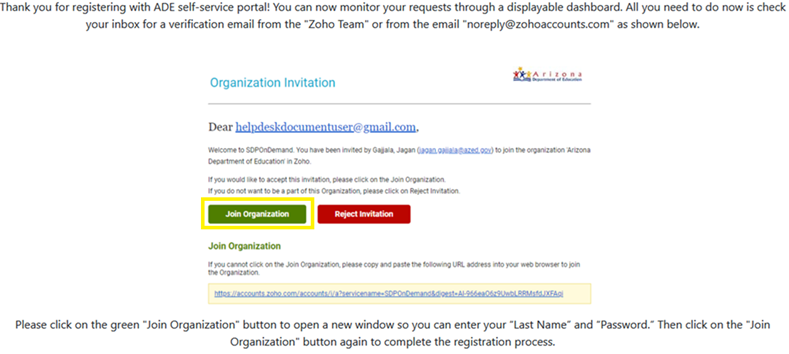
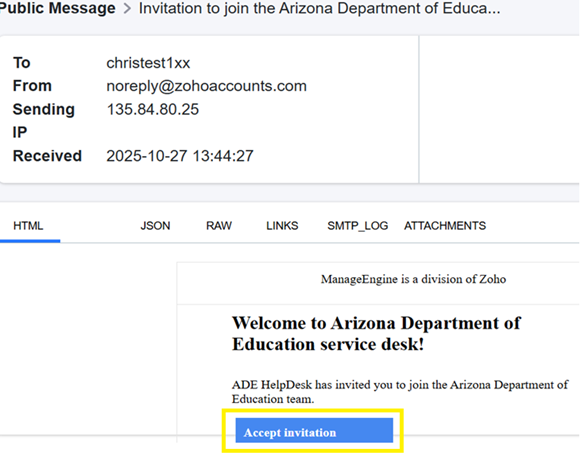
Next, an email will be sent (from the “Zoho Team”) inviting you to “join the Arizona Department of Education”.
When you find it, click "Accept invitation".
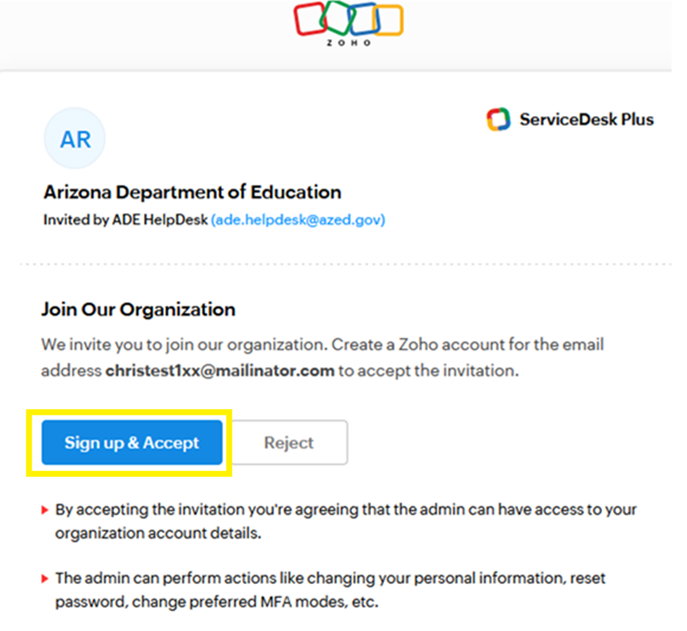
In the page that loads, click "Sign up & Accept"
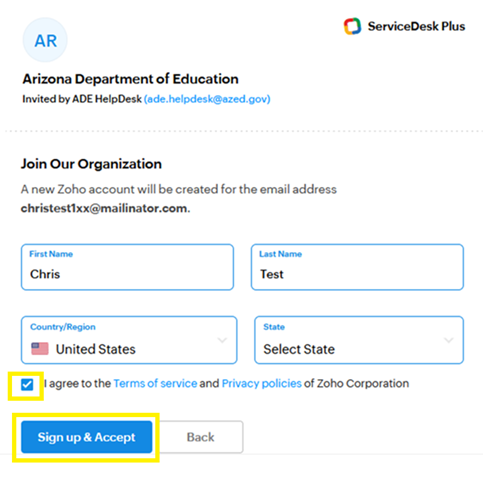
Accept the invitation... and click "Sign up & Accept" again.
At this point, the HelpDesk should load.
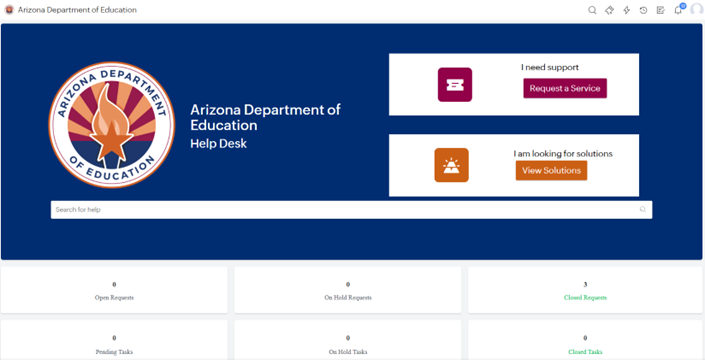
How do I re-access the Help Desk
After you create a Helpdesk account, you can re-access the Helpdesk by using the following (bookmarkable) link:
https://helpdeskexternal.azed.gov
Or, in ADEConnect – you can access the Helpdesk by clicking the “Help” link – then “Go to Help Desk”
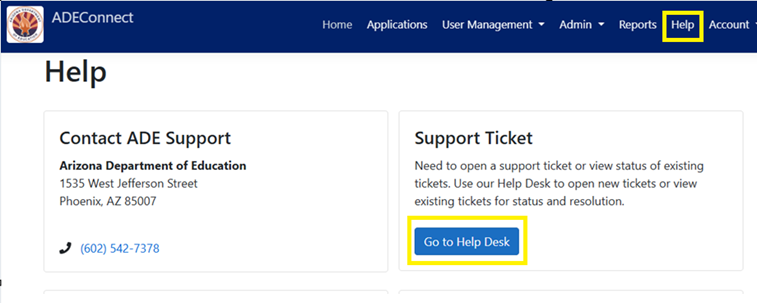
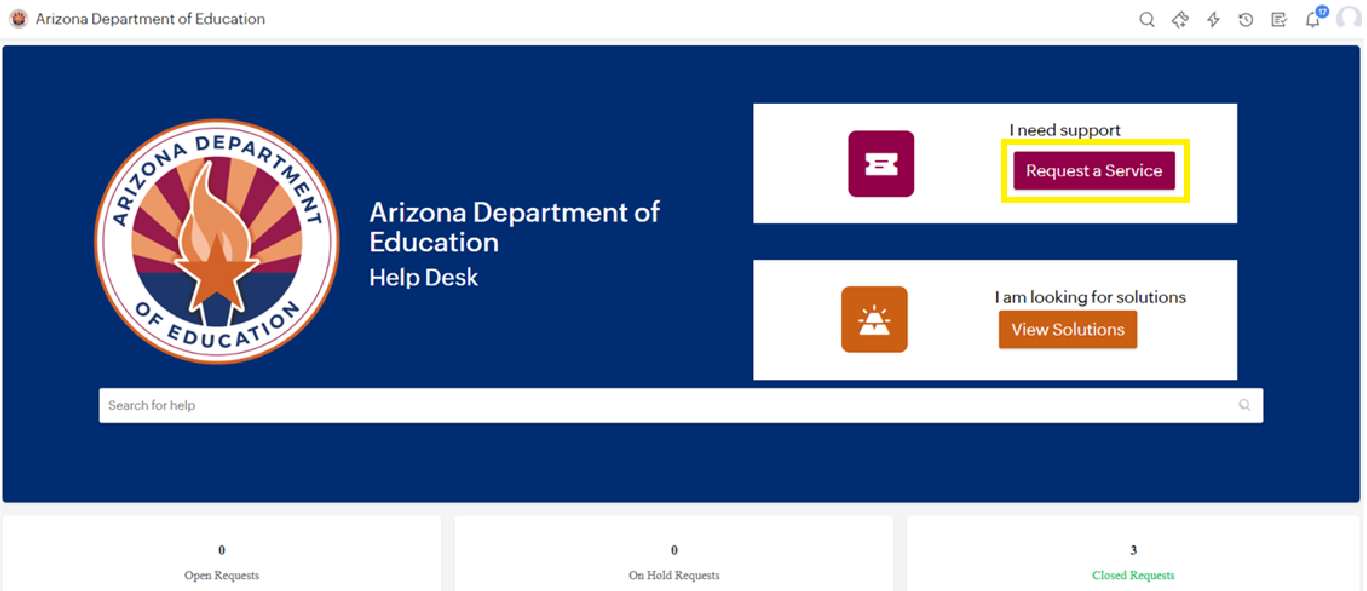
How to create Help Desk tickets
After you log in to Helpdesk, create a Helpdesk ticket by clicking “Request a service”.
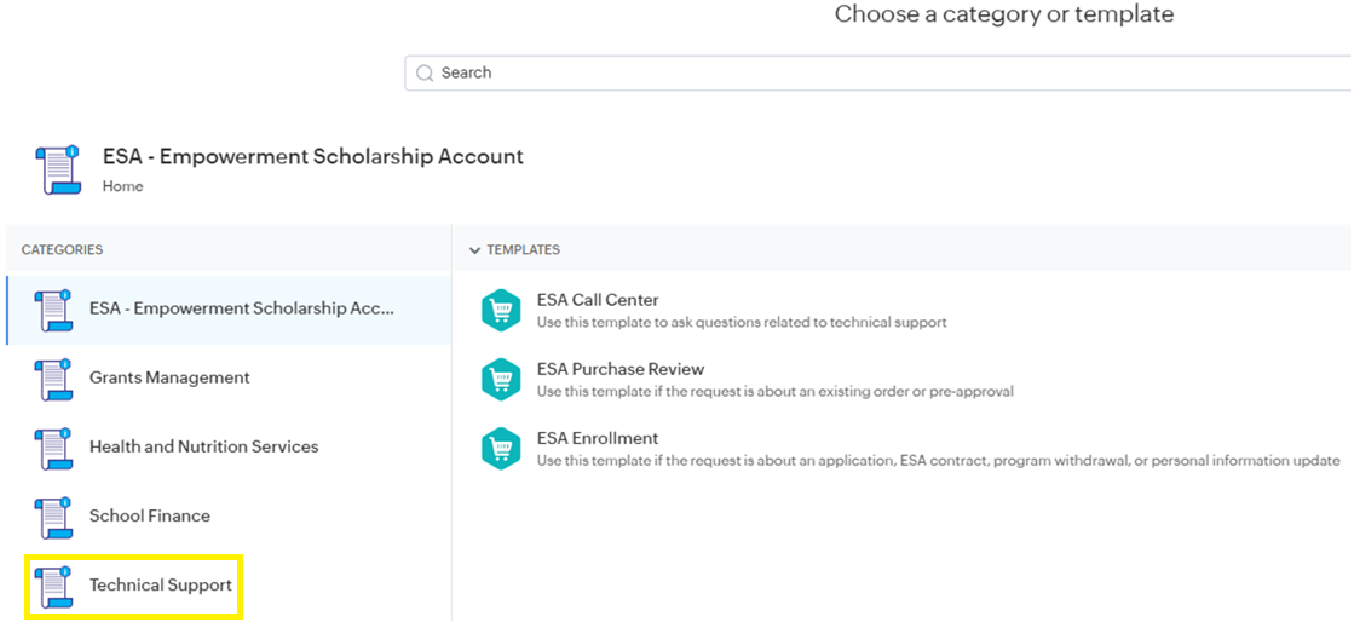
You'll see Categories and Templates for 'ESA', 'Grants Management', 'School Finance', etc...
For anything else, select 'Technical Support'.
Sekect a template and fill in the required fields then attach a screenshot (if desired) and click “Add Request”.
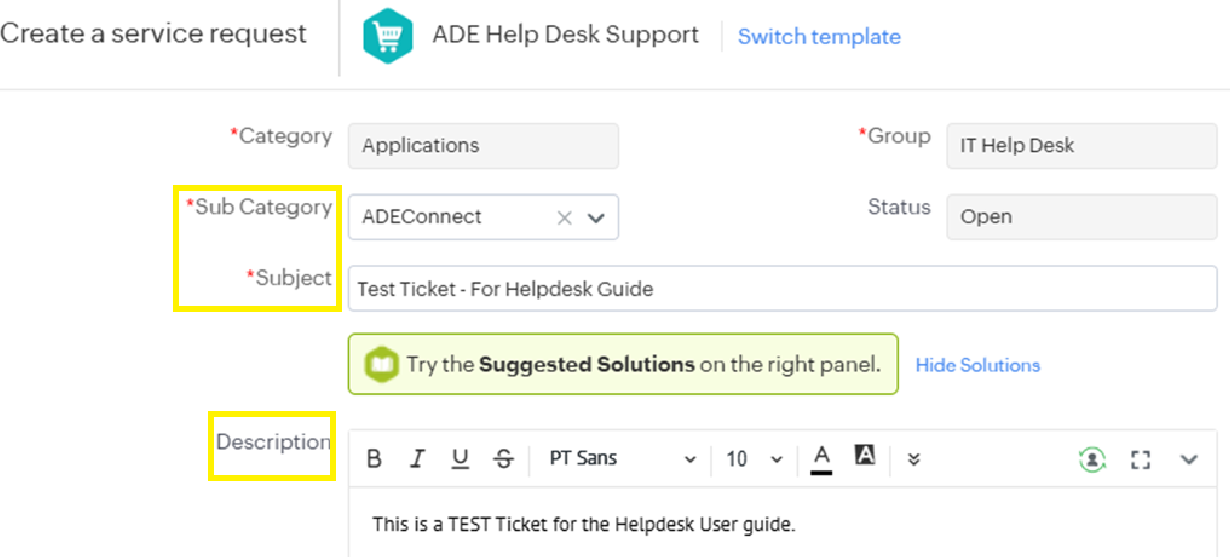
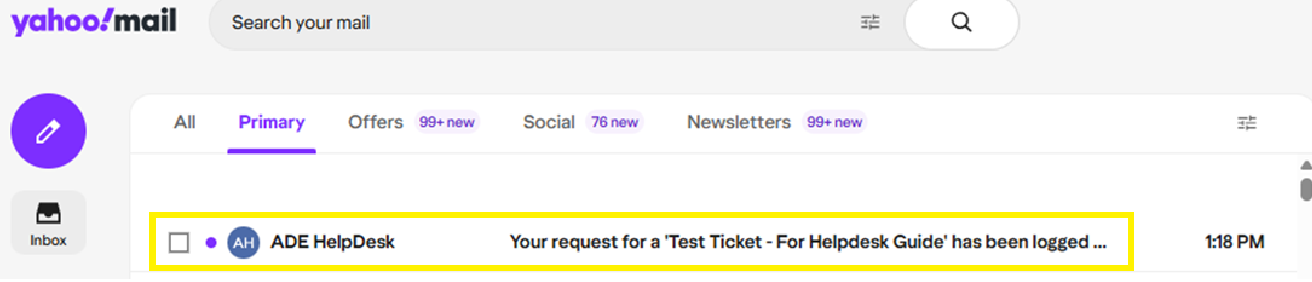
You'll receive an email letting you know the ticket was created.
How to update tickets
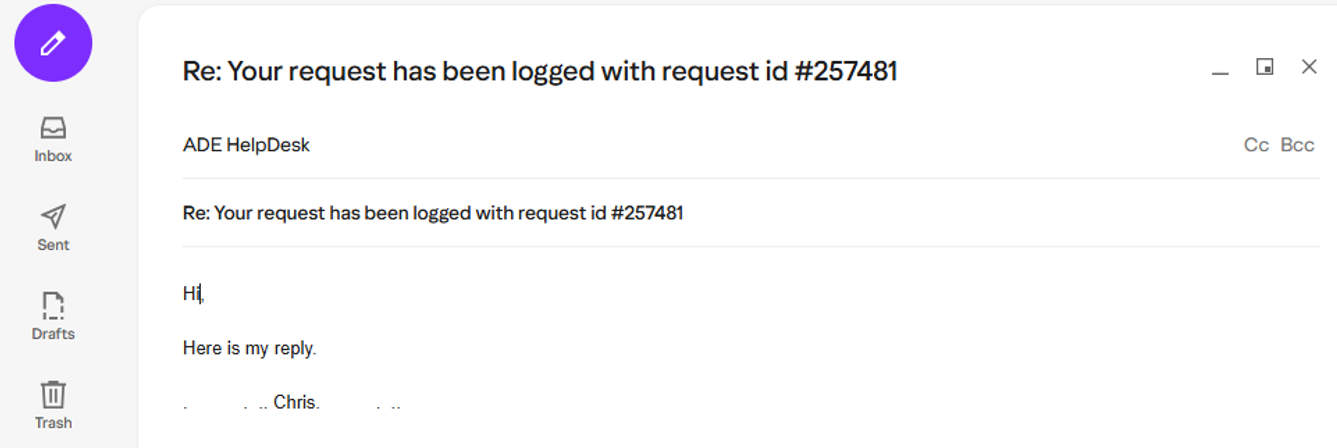
To respond to tickets, check your email and find the most recent response, then reply to it.
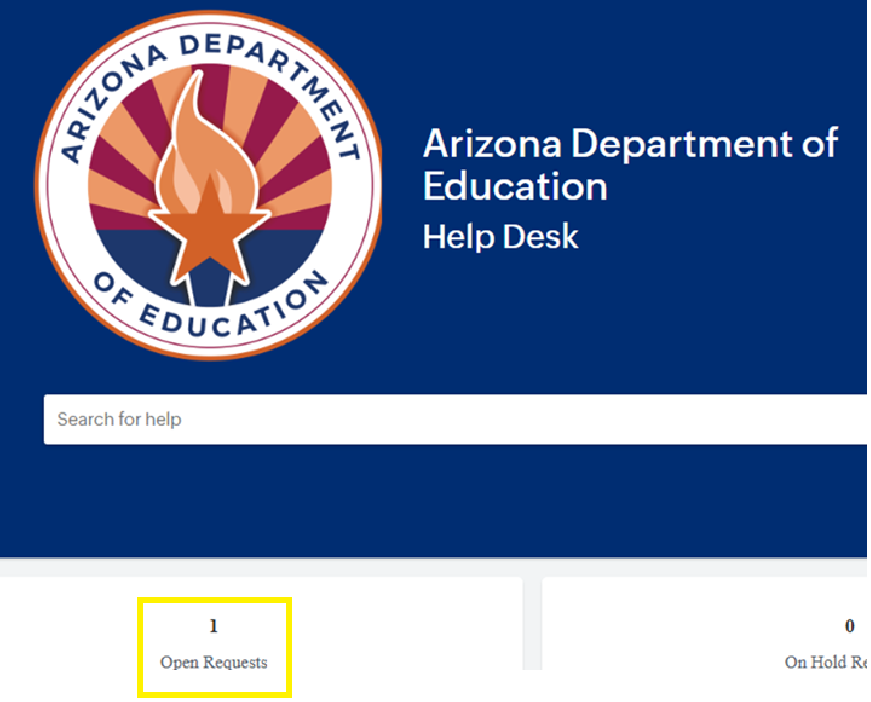
Also, in the Helpdesk, you can view/update tickets via “Open Requests”
Troubleshooting: What if I try to log in the Helpdesk and see a message stating: “User doesn’t exist”?
In this case, please contact the ADE Technical Support (at 602-542-2222) so they can help resolve the issue.
ADE Technical Support
Troubleshooting: What if my email address changes… How do I update it in the Helpdesk?
This a two step process:
1. If you are able to log in ADEConnect successfully – and your email address will change in the future, you can update it in ADEConnect by going to “Account > My Profile > Change Email Address”
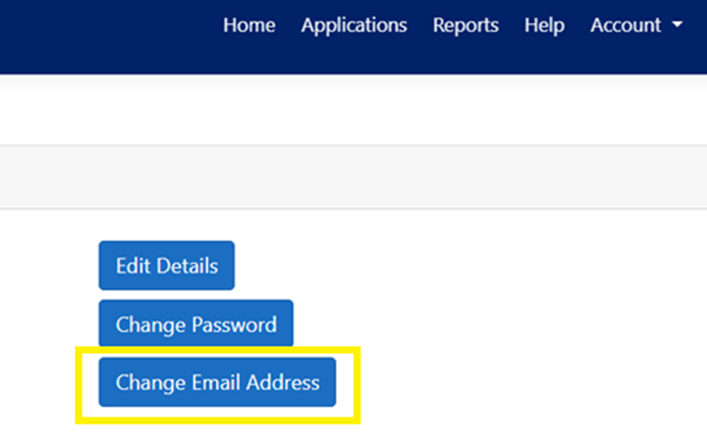
If the email address does not get updated, contact the ADE ServiceDesk team (602-542-2222) ADE Technical Support so they can help resolve the situation.
2. After your email address is updated in ADEConnect, the only way to update it in HelpDesk is by requesting ADE Technical Support (602-542-2222). Either submit a ticket, or call.
Troubleshooting: What if I forget my password?
After you log in ADEConnect, you can access the Helpdesk by clicking the “Help” link – then “Go to Help Desk”.
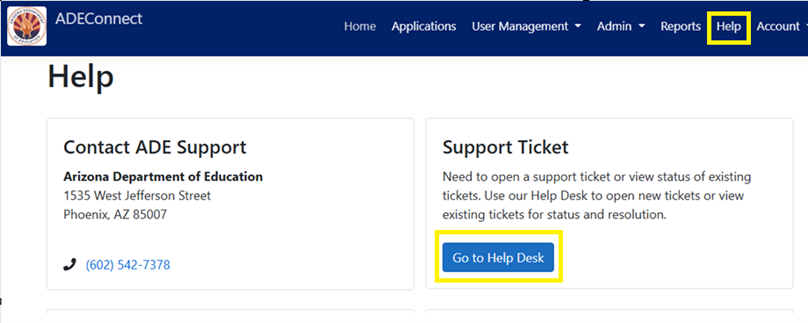
If you are unable to login to ADEConnect, then you can try to reset your ADEConnect password (but only if you normally use a password to login).
The “Reset Password” link is here:
https://adeconnectservice.azed.gov/PasswordChange/RequestPassword.aspx
If you receive a message like the following:

The error message means your account is associated with another Zoho organization. Before you can access the ADE Zoho instance, you must first remove the existing Zoho registration from your account.
To do this, go to: https://accounts.zoho.com → Login to Account → Settings → Close Account
After the conflicting Zoho registration has been removed, you can access the ADE Help Desk portal at https://helpdeskexternal.azed.gov and complete the ADE registration process.
Mobile Device Users:
Accessing the portal through a mobile web browser is not supported. If you are using a mobile device, please install and use the supported ServiceDesk Plus application:
Android:
https://play.google.com/store/search?q=servicedesk%20cloud&c=apps&hl=en_IN&gl=US
Apple iOS:
https://apps.apple.com/us/app/saas-helpdesk-servicedesk-plus/id496792710
After completing the steps above, you should be able to successfully register for and access the ADE Help Desk portal.
If you are still unable to register or access your account, please contact ADE Technical Support at 602-542-2222 to provide any error messages, screenshots, or details about the issue you are experiencing so our support team can assist with troubleshooting and resolution.
We're excited to introduce Help Solutions, a new self-service feature designed to help you resolve common issues quickly and efficiently.
When creating a Help ticket, the system will automatically suggest relevant solutions based on the keywords entered in your request. Before submitting your ticket, please take a moment to review these recommended solutions as they may provide the answer you need without waiting for support assistance.
Benefits of Help Solutions
· Faster resolution to common issues
· Self-service guidance available within the ticketing process
· Reduced wait times for support requests
· Easy access to helpful troubleshooting steps
What's Next?
Our Suggested Solution library is currently limited, but we're actively expanding it. Over time, you'll see more solutions added to help you find answers faster and empower you to resolve issues on your own.